(For Windows 11 / 10 / 8 / 7 / XP • PCs and laptops)
• Filter harmful blue light from your screen
• Improve sleep by reducing blue light that disrupts your sleep cycle
• Adjust brightness for comfortable viewing
• Prevent eye strain from overly bright or dim screens
• Get reminders to take regular breaks
• Reduce eye strain and fatigue with regular breaks
• Highlight your active window to reduce distractions
• Dim background windows to help you stay focused
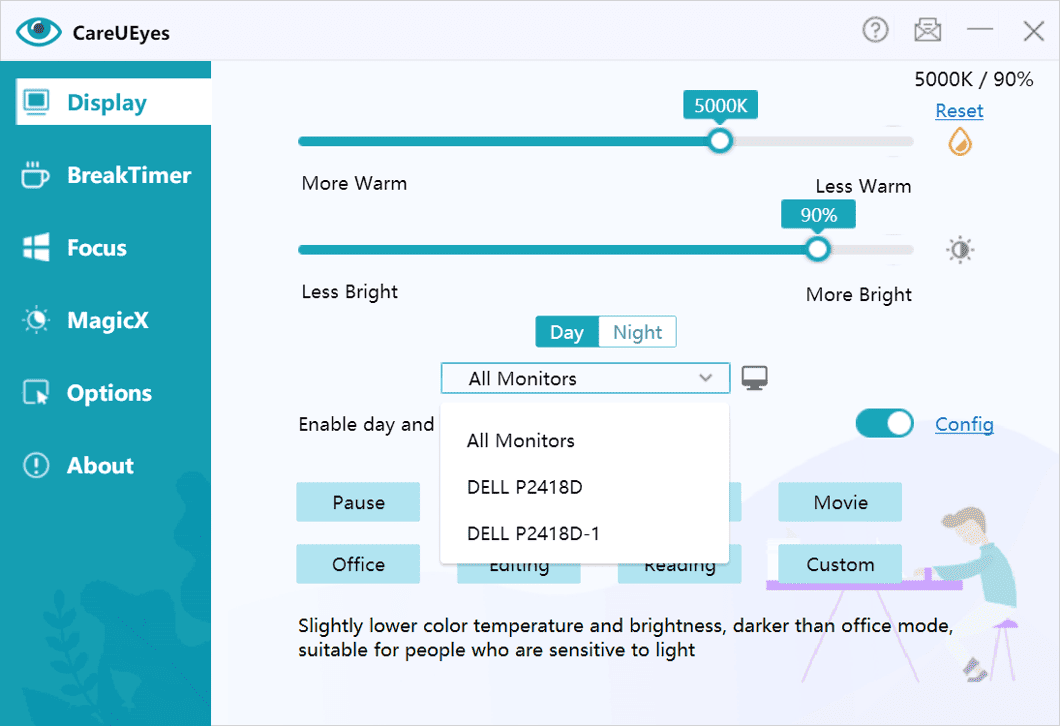
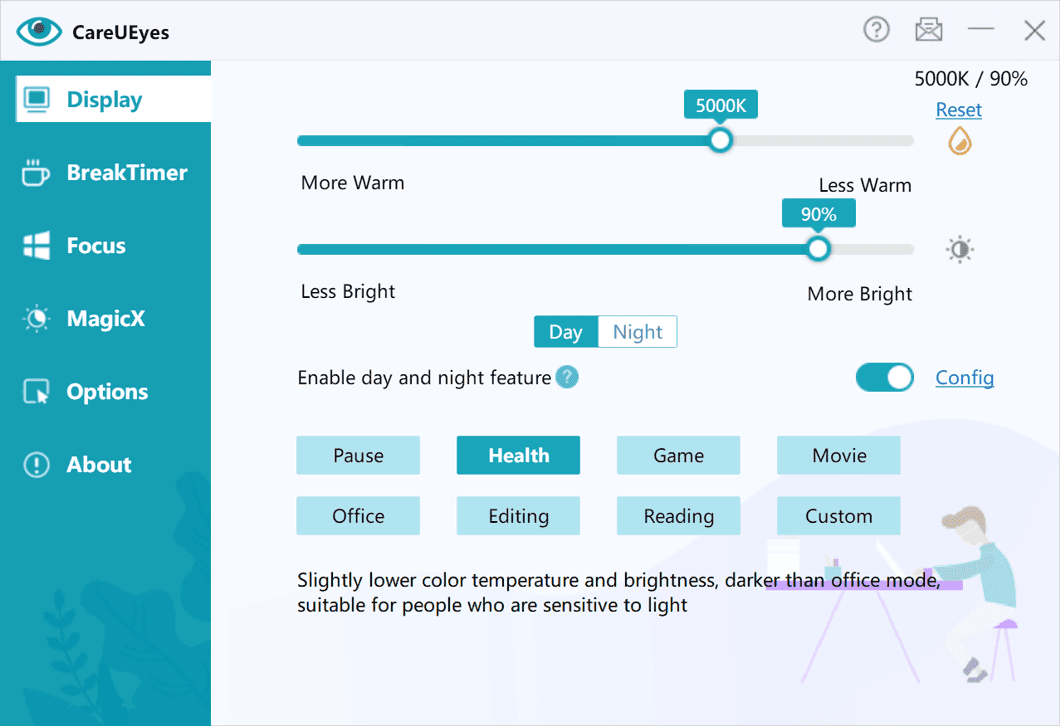
• Blue light filtering – Reduce harmful blue light by adjusting screen color temperature to protect your eyes.
• 8 Smart Preset Modes for Every Scenario – Each mode comes with carefully set color temperature, so you can start using it immediately without any setup and quickly find a mode that fits your situation.
• Fully Customizable Color Temperature - You can adjust the color temperature and brightness of every mode to match your personal preference.
• Day & night adjustment – Automatically adjust color temperature based on your local sunrise and sunset.
• No yellow screenshots – Maintain accurate colors when capturing screens.
• Wider color temperature range – Fully adjustable from 0K to 10,000K, far exceeding industry standards.
👉 Learn More About Blue Light Filter for PC→
• Comfortable brightness adjustment – No washed-out colors, no added flicker, for better eye protection.
• Precise brightness control (1% accuracy) - Finer control than default Windows settings or standard dimmer tools.
• Extended brightness range – Adjust brightness beyond your monitor's default limits.
• Multi-monitor support – Adjust each display independently or sync brightness across all screens.
• Auto brightness – Automatically adjusts brightness based on the time of day to match your environment and reduce eye strain.
• Keyboard shortcuts – Quickly adjust brightness using custom hotkeys.
👉 Learn More About Screen Brightness Control →
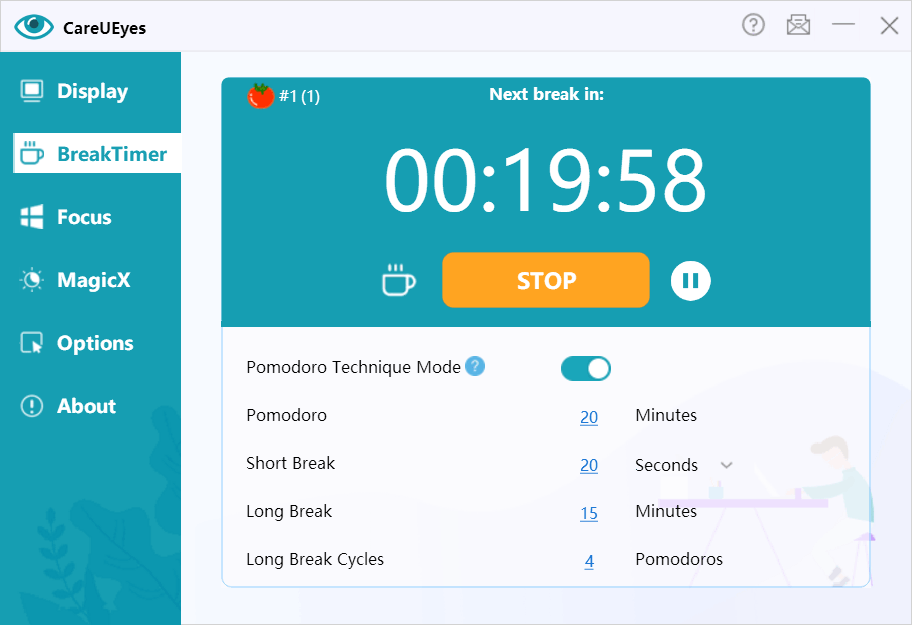
• Custom break reminders – Set personalized intervals to prevent eye fatigue.
• Enforced breaks – Lock your screen temporarily to ensure you get real, uninterrupted rest.
• Smart pause detection – Automatically pause the timer when you're away from the computer.
• Structured break cycles – Automatically alternate short and long breaks.
• The 20-20-20 rule - Easily follow the recommended standard to reduce eye strain.
👉 Learn More About Break Timer Features →
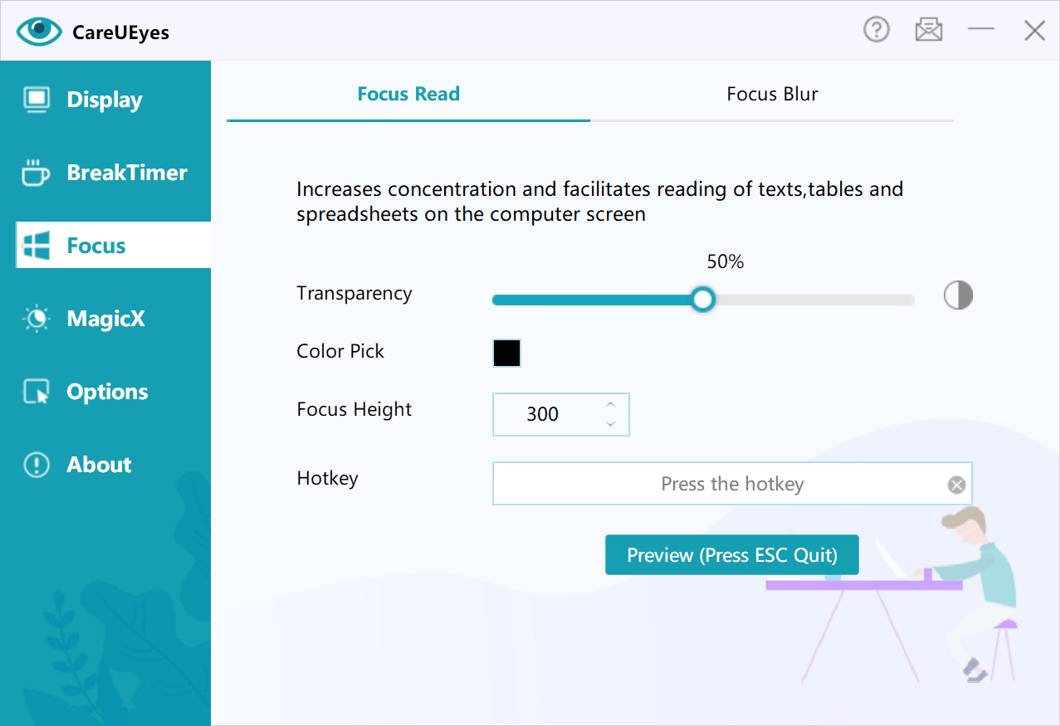
• Focus Read – Highlight active reading areas to improve concentration.
• Focus Blur – Blur background windows to reduce visual distractions.
• Magic Window – Darken or grayscale any window to reduce distractions and make content easier to read.
• Auto Dark – Automatically switch between light and dark mode based on your schedule.
👉Learn More About Focus Read Features →
👉Learn More About Focus Blur Features →
👉Learn More About MagicX Features →
Creating a custom head or body requires specialized software and patience with sprite sheets. Step 1: Download Official Templates
Only upload graphics you own the rights to or have permission to use.
: Keep your templates perfectly aligned. Shifting your frame by even a single pixel causes your character's head or body to jitter wildly whenever they walk, look around, or sit.
GraalOnline Era is a modern 2D MMO that thrives on player creativity. One of its most iconic features is the ability to customize your character using personal "uploads." Unlike many other games where you are limited to preset skins, Era allows you to design and submit your own heads, bodies, and shields to make your avatar truly unique.
CLI tools are expected to execute near-instantaneously. A native image compiled from a Java program starts just as fast as a Go or Rust binary, making Java a viable option for building responsive command-line tools that were previously impractical due to JVM startup overhead.
GraalOnline Era allows players to customize three core visual components of their character. Each component has its own pricing, mechanics, and design constraints:
You must provide the exact linked to your GraalOnline Era account. If your account is not registered to an email, you will need to do this in-game first via the identify menu. Step 3: Choose Your File and Category
The staff will provide a reason. Common reasons include improper transparency, wrong dimensions, or inappropriate content 1.2.1 . Tips for Success
: Custom heads cannot include "hat-like" accessories such as bandanas, gas masks, or sunglasses, as these are sold as separate items in-game. Animations
The head file must be a spooled sheet . That means your image file has to include the front view, side views, and back view in a specific grid layout. A single 64x64 image contains 8 individual 32x32 frames. If your layout is off by one pixel, the upload will come out looking like a glitched mess.
Go to the official GraalOnline Era Upload website (accessible via the in-game menu or through a standard browser).
: Your file was accidentally resized. Ensure heads are exactly 32x560 and bodies are 128x720 pixels.
: Images featuring racism, gore, real-life photos, or offensive material will be rejected.
Creating a custom head or body requires specialized software and patience with sprite sheets. Step 1: Download Official Templates
Only upload graphics you own the rights to or have permission to use.
: Keep your templates perfectly aligned. Shifting your frame by even a single pixel causes your character's head or body to jitter wildly whenever they walk, look around, or sit.
GraalOnline Era is a modern 2D MMO that thrives on player creativity. One of its most iconic features is the ability to customize your character using personal "uploads." Unlike many other games where you are limited to preset skins, Era allows you to design and submit your own heads, bodies, and shields to make your avatar truly unique. graal era upload
CLI tools are expected to execute near-instantaneously. A native image compiled from a Java program starts just as fast as a Go or Rust binary, making Java a viable option for building responsive command-line tools that were previously impractical due to JVM startup overhead.
GraalOnline Era allows players to customize three core visual components of their character. Each component has its own pricing, mechanics, and design constraints:
You must provide the exact linked to your GraalOnline Era account. If your account is not registered to an email, you will need to do this in-game first via the identify menu. Step 3: Choose Your File and Category Creating a custom head or body requires specialized
The staff will provide a reason. Common reasons include improper transparency, wrong dimensions, or inappropriate content 1.2.1 . Tips for Success
: Custom heads cannot include "hat-like" accessories such as bandanas, gas masks, or sunglasses, as these are sold as separate items in-game. Animations
The head file must be a spooled sheet . That means your image file has to include the front view, side views, and back view in a specific grid layout. A single 64x64 image contains 8 individual 32x32 frames. If your layout is off by one pixel, the upload will come out looking like a glitched mess. Shifting your frame by even a single pixel
Go to the official GraalOnline Era Upload website (accessible via the in-game menu or through a standard browser).
: Your file was accidentally resized. Ensure heads are exactly 32x560 and bodies are 128x720 pixels.
: Images featuring racism, gore, real-life photos, or offensive material will be rejected.